
Vice City · Leonida Keys · Grassrivers · Port Gellhorn · Ambrosia · Mount Kalaga
Interactive map of Leonida from GTA 6
Find places by name, district or category, see what’s nearby, and keep notes, custom markers and a to-do list – no account needed, everything stays in your browser. Places from later chapters are hidden by default, so the story isn’t spoiled. Shops, venues and landmarks come from the open GTADB database, sorted into our own categories, and collectibles are added only once their location is verified.
The map in numbers
- 870places on the map
- 46categories
- 6regions
Data checked on 19 November 2026
Categories
Every category has its own page with a description and, once we have verified positions, a list of places with their district, grid cell and a link straight to the map.
For 100%
Shops & services
Property
Regions
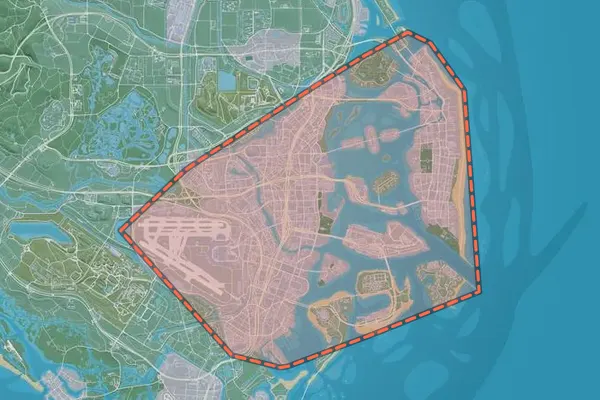
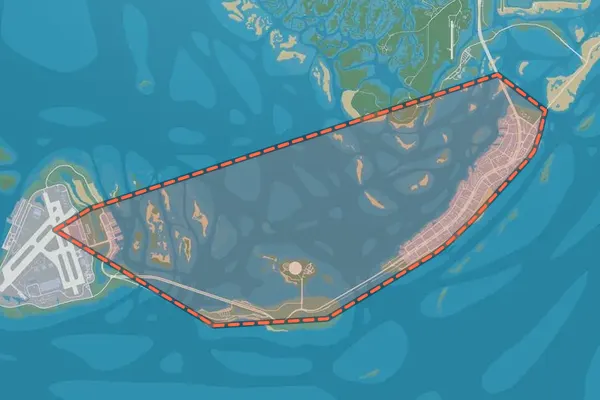
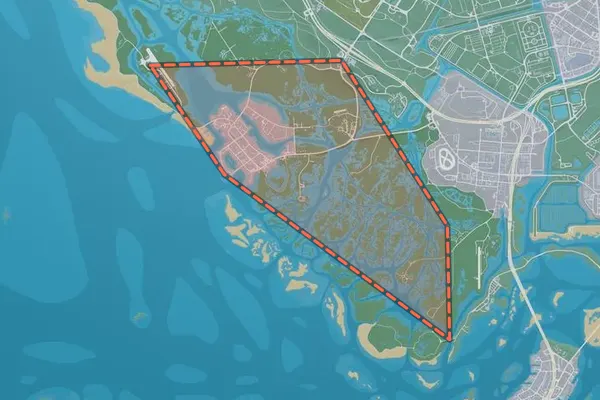
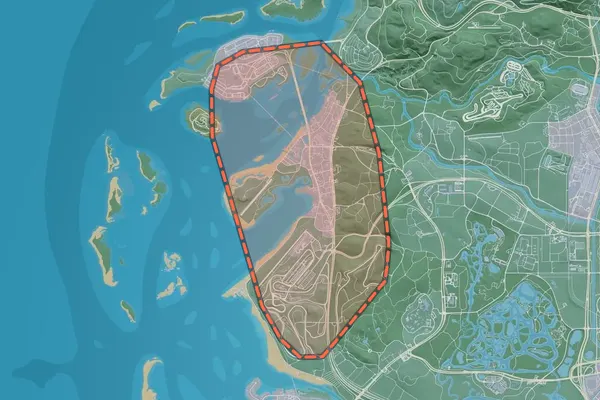
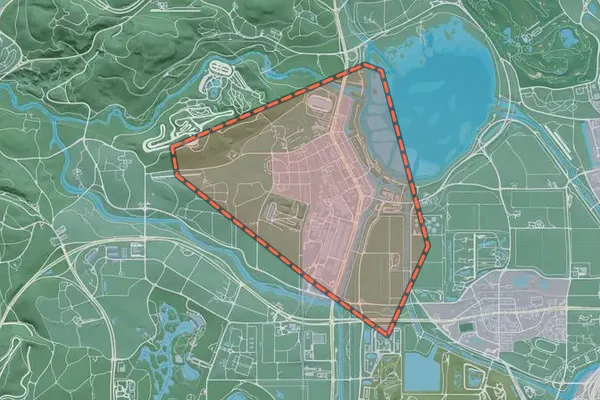
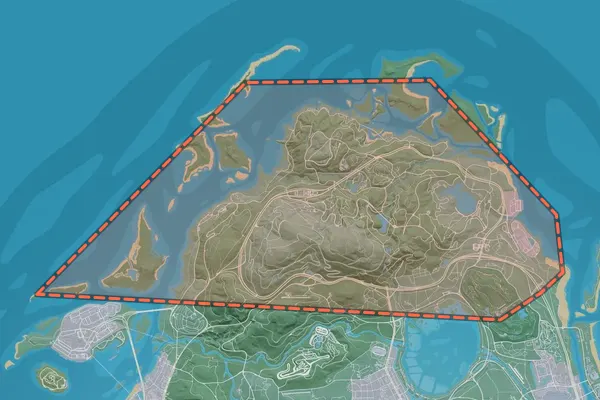
Leonida’s six regions – from Vice City to the forests of Mount Kalaga – each with a description and its places grouped by category.
Frequently asked questions
Common questions about the data, spoilers and saving your progress.
Is this an official GTA 6 map?
No. It’s an unofficial fan project with no connection to Rockstar Games or Take-Two Interactive. The base map and core data come from GTADB, which publishes them under CC BY 4.0 – we use them with credit to the authors and a note that we’ve modified them.
Where do the places on the map come from?
Mostly from GTADB, a community-built database of the GTA VI map with in-game addresses and building tags. We’ve sorted the places into our own categories and add only what we’ve checked in our own play or taken from sources whose licence allows it. Every place panel has a Sources section, so you can always see where a point came from.
What do “exact”, “approximate” and “area” mean?
An exact position is read from the in-game map – the marker is a solid circle in the category colour. Approximate means the place is close by but its position isn’t certain; that marker has a dashed outline. An area is a neighbourhood to search – the map draws a translucent circle of the given radius, and the exact-positions-only switch leaves just the certain points on the map.
Why are some collectibles and missions missing?
We only add positions that can be verified – we don’t guess, and we don’t copy lists from other people’s guides. That’s why some categories have few places or none at all, in which case their counter in the filters shows 0. The counter for collectibles sets the confirmed in-game total against what’s already on the map, so you can see at a glance what’s still missing.
How does spoiler protection work?
In the Spoilers section you set which chapter you’re on – chapter 1 by default. Places from later chapters disappear from the map, search results and counters, and all you see instead is how many are hidden. If someone sends you a link to such a place, the map asks first whether to show it.
Where is my progress saved?
Places that can be completed are ticked off with the Completed button in their panel, while notes, custom markers and the to-do list save automatically. Everything stays in this browser only – there’s no account or sign-in, so clearing your browser data also wipes your progress. Make a copy with Export in the Progress section, and Import loads it on another device.
What is a grid cell such as H6?
The official poster map of the state is divided into a grid: rows A to M from top to bottom and columns 1 to 9 from the left. We’ve recreated that grid on our map – each place panel gives its cell, and the poster grid layer draws the lines. Type a cell such as H6 into search and the map takes you straight there.
Does the map work on a phone?
Yes – it was built with a phone next to the console in mind and runs in an ordinary mobile browser. The search bar sits at the top, while filters and place details open in a sheet that slides up from the bottom and has three heights; buttons are within thumb reach, so one hand is enough. Pressing and holding on the map opens a menu where you can add a custom marker, and Share sends someone a link to a place.